Furnish a room, approve each change, show the client
A mood board does not show whether the sofa fits. Place real models in the real room, try finishes, and let an assistant draft a layout that you accept or reject piece by piece.
Import a room plan
Free to start, with 5 projects and share links included.

- Walls
- 7
- Doors
- 1
- Windows
- 1
- Rooms
- 2
- Scale from
- a scale bar
What you get
- Place about 300 free models, or upload your own GLB, OBJ or FBX file.
- Ask the assistant to furnish a room in a style, or take the style from a photo. It shows the change and you Approve or Discard.
- Change wall and floor finishes, then check cost and measurements.
- Send clients a share link, or a still render of the room.
In the app
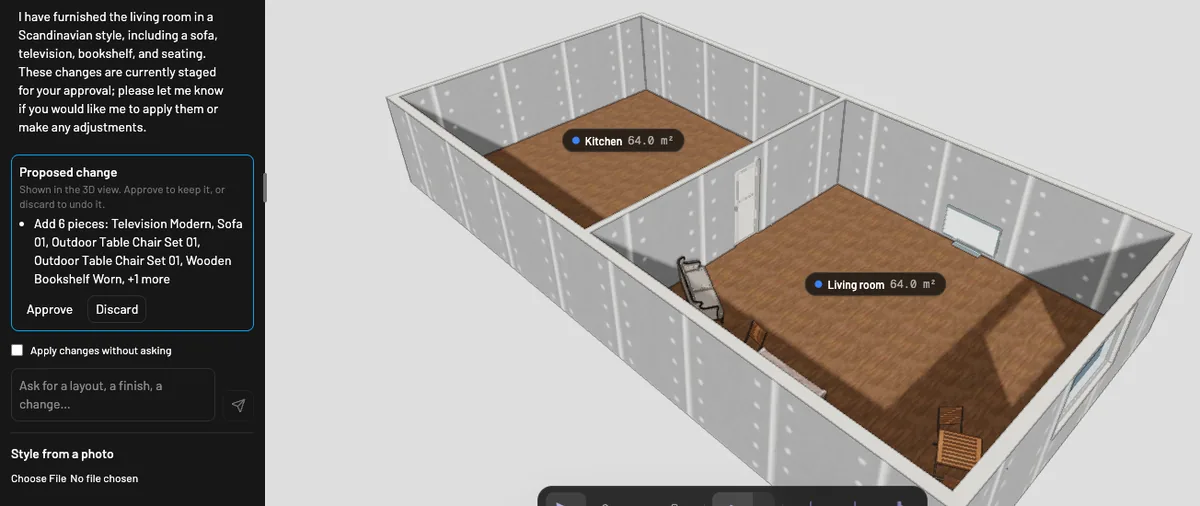
How it works here
Import the plan, open the catalog and place pieces, or give the assistant a style. Each proposed change appears as a card, and you can undo a whole step. The assistant allows up to 10 requests a day on every plan, and a photo counts as one request. Make a still render of the room for the client.